

This section of the WP Maps settings gives you control over how stores are listed and displayed on your locator widget.
The options include the number of stores per page, how they are sorted, and when stores should be visible to users.
Understanding and configuring these options can greatly enhance user experience and streamline store discovery.
What These Options Do #
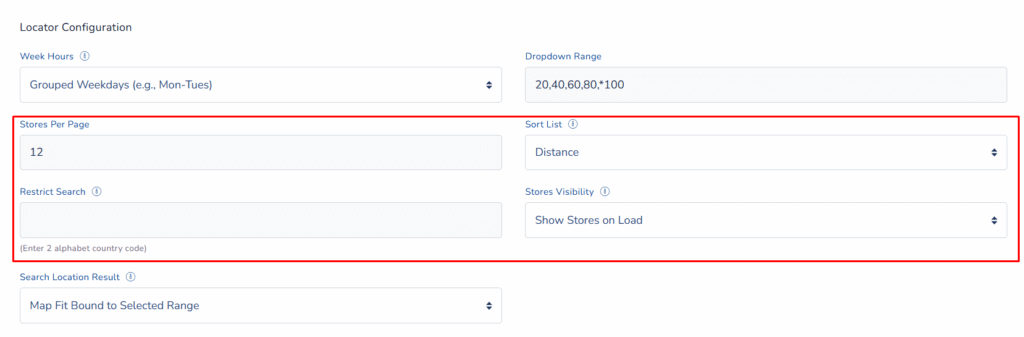
1. Store per Page #
Defines how many store results appear in the list view at a time. This is especially useful for keeping results manageable and paginated for longer lists.
- Example: Setting this to 10 means only 10 stores will show per page, and pagination controls will appear if more stores exist.
2. Sort List #
Controls the sorting order of listed stores. You can choose how stores are ordered in the result list based on one of the following attributes:
- Distance – The Closest store appears first (most commonly used).
- Title – Sorts alphabetically by store name.
- City – Organizes results based on city data.
- State – Organizes results based on state data.
This helps users scan the results more easily, depending on their preference or how your stores are geographically distributed.
3. Store Visibility #
Controls when the store results appear to the user. Two main options:
- Show Stores on Load – Store results load immediately when the page loads, even before a user performs a search.
- Show Stores on Search – Store results only load after the user performs a search or enters a location.
Choosing the right setting here can impact performance and UX. For example, “Show Stores on Search” is best when you have a large number of stores and want to avoid overwhelming users or loading time issues.
Benefits of These Settings #
- Better User Control – Sorting helps users find the store they need faster.
- Performance Optimization – Delaying store visibility until search keeps the page light and responsive.
- Mobile-Friendly – Fewer stores per page helps with scrolling and load times on smaller screens.
- Custom Experience – Tailor how users interact with your map based on your business goals.
How to Configure #
- Log in to your WP Maps account and click on the “Widgets” tab.
- Click on “Install Widget”.

- Under the “UI Settings” section, look for these settings.

- Locate:
- Store per Page
- Sort List
- Store Visibility
- Adjust the values and selections to match your preference.
- Click Save Changes.


For any questions or concerns, feel free to contact us at [email protected].


