

WP Maps includes interactive visual features that improve user experience by tightly linking the map and store list.
From responsive highlighting to map auto-scrolling, these tools help users better locate and interact with your store data.
What These Options Do #
1. Highlight Marker on List Hover #
This feature highlights the corresponding store marker on the map when the user hovers their mouse over a store in the store list.
It provides a visual connection between the list and map, helping users quickly associate store details with their physical location.
2. Scroll to Map #
When enabled, this feature automatically scrolls the screen to the map area (particularly on mobile devices) when a user clicks or taps a store in the store list.
It ensures that the user immediately sees the selected store’s marker and info window, reducing confusion on small screens.
3. Radius Circle #
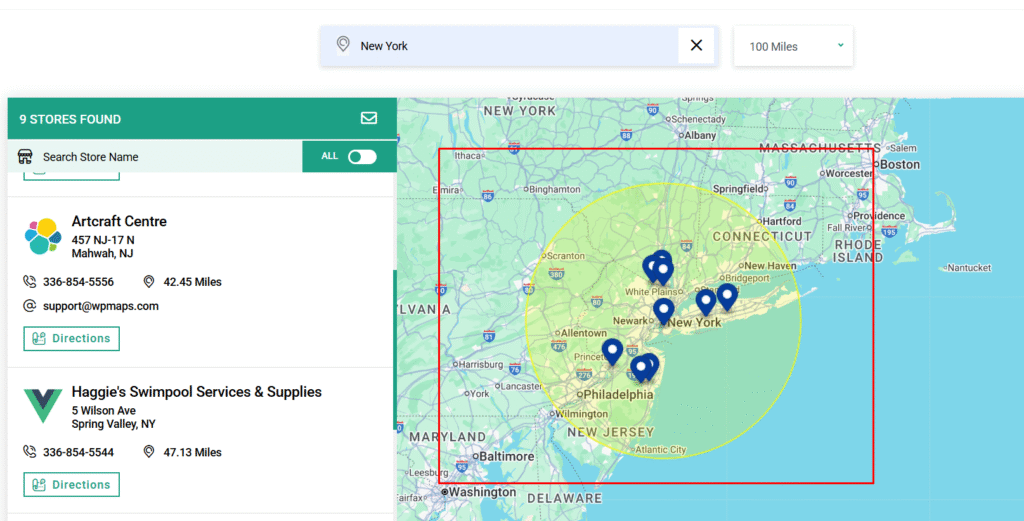
This option displays a visual circular boundary on the map representing the selected search radius. It provides context for distance-based search results by clearly showing the area being searched.
The radius dynamically adjusts as users change the distance range from the dropdown.
Benefits of These Settings #
- Better Visual Cues – Hovering instantly shows which marker corresponds to which store.
- Mobile-Friendly Navigation – Auto-scrolling improves usability on smaller screens.
- Improved Search Clarity – Radius circles help users understand the geographic scope of their search.
How to Configure #
- Log in to your WP Maps account and click on the “Widgets” tab.
- Click on “Install Widget”.

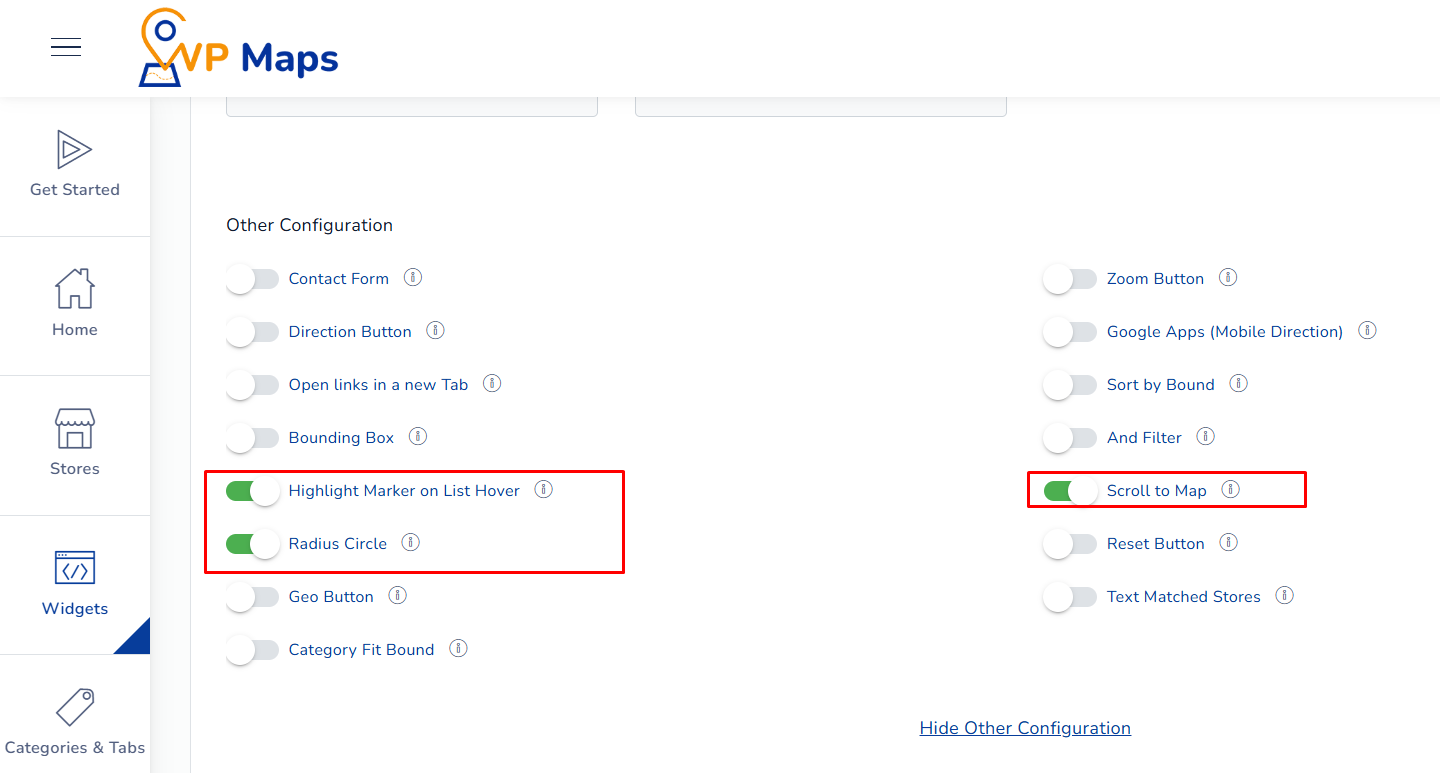
- Under the “UI Setting” section, locate the options in question.

- Enable any or all of the following:
- Highlight Marker on List Hover
- Scroll to Map
- Radius Circle
- Save your settings and refresh the widget view on your website.


For any questions or concerns, feel free to contact us at [email protected].


