

This group of settings controls the visual appearance of various map markers, including default, active, circle, and geolocation markers. Customizing these colors improves brand consistency and user experience.
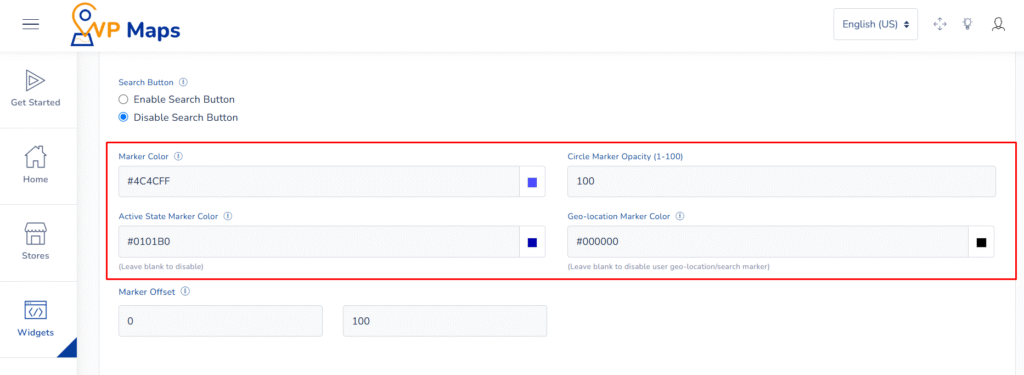
Marker Color #
What it does #
Defines the default color for all store markers shown on the map before any interaction.
Uses & Benefits #
Choose a marker color that aligns with your website’s theme or branding. A consistent visual identity across your store locator helps reinforce trust and improve usability.
Active State Marker Color #
What it does #
Specifies the color of a store marker when it is selected or clicked.
Uses & Benefits #
Visibly differentiates the selected store from others. This enhances clarity for users who want to focus on one location at a time, especially in maps with many stores.
Circle Marker Opacity #
What it does #
Adjusts the transparency of circular markers when the Circle Marker type is enabled.
Available Range #
Set a value from 1 to 100, where 100 is fully opaque and 1 is nearly invisible.
Uses & Benefits #
Fine-tune the visibility of circle markers to prevent them from overpowering other elements on the map. This is especially useful when representing coverage or radius zones without cluttering the interface.
Geo-Location Marker Color #
What it does #
Defines the color of the marker that indicates the user’s current location.
Uses & Benefits #
Helps distinguish the user’s position from store markers. Using a unique and contrasting color improves orientation and clarity on the map, especially when multiple markers are nearby.
How to Configure #
- Log in to your WP Maps account and click on the “Widgets” tab.
- Click on “Install Widget”.

- Under the “UI Setting” section, locate the options in question

- Make your selection in the “Marker Color”, “Circle Marker Opacity”, “Active State Marker Color”, and “Geo-Location Marker Color” fields.
- Save the settings and refresh the widget interface.


For any questions or concerns, feel free to contact us at [email protected].


