

These configuration options influence how location markers appear on the map, what distance unit is displayed, and whether or not the search button is visible to users.
Each setting enhances usability and ensures a tailored map experience for your visitors.
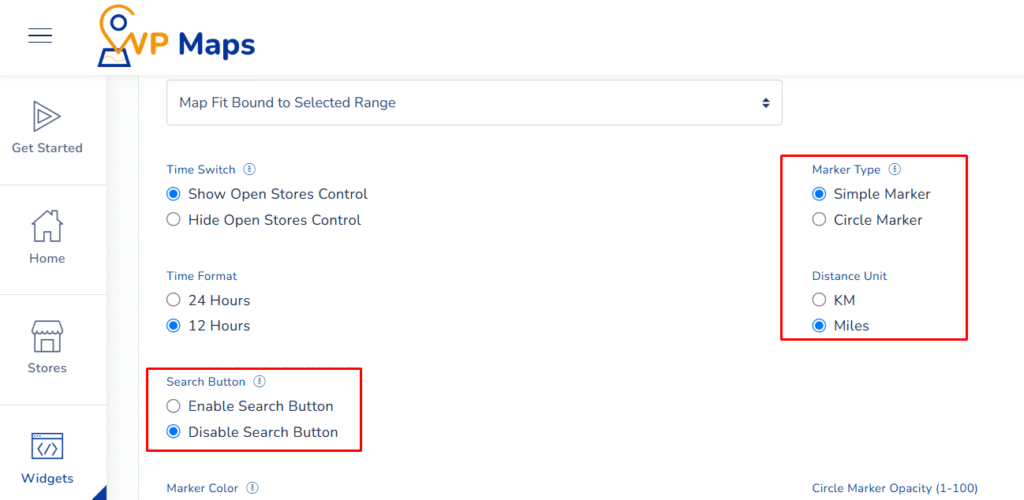
Marker Type #
What it does: #
This option controls the appearance of the markers displayed on the map.
Available Choices: #
- Simple Marker – A standard pin-style icon.
- Circle Marker – A circular shape drawn around the store’s location.
Uses & Benefits #
Simple markers are ideal for a minimalist look, while circle markers can visually represent search radius or coverage zones. Choose the one that best aligns with your map’s design and purpose.
Distance Unit #
What it does: #
This setting determines the unit used to calculate and display the distance between the user and the store.
Available Choices: #
- Kilometers (KM)
- Miles
Uses & Benefits: #
Selecting the appropriate unit ensures your users see distances in a format familiar to them—kilometers for international users, and miles for US-based users, for example.
Search Button #
What it does: #
Toggles the visibility of the search button in the map interface.
Available Choices: #
- Enable Search Button – Displays a clear call-to-action button for users to initiate the search.
- Disable Search Button – Removes the button and may rely on real-time input or auto-searching.
Uses & Benefits #
Enabling the search button gives users direct control over when the map should display results, which can be helpful for performance and usability, especially on slower connections or mobile devices.
How to Configure #
- Log in to your WP Maps account and click on the “Widgets” tab.
- Click on “Install Widget”.

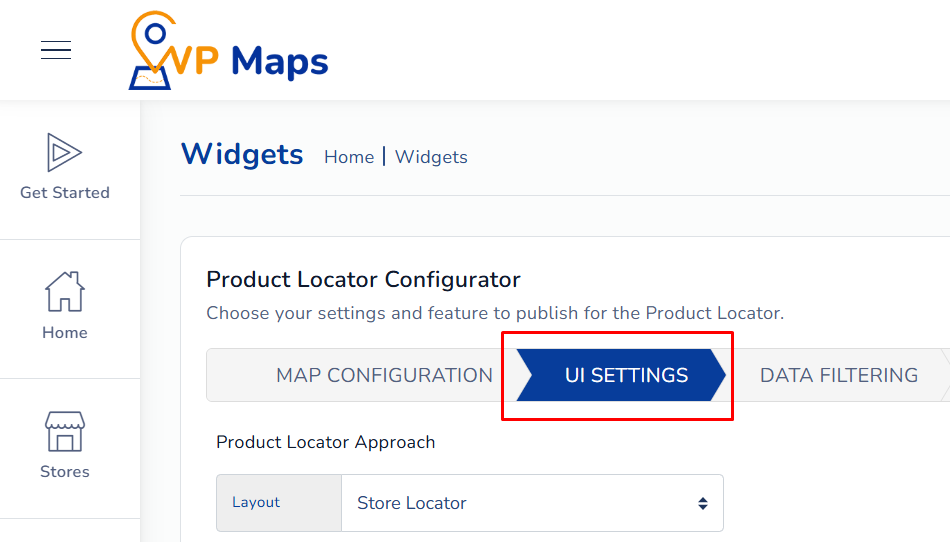
- Under the “UI Setting” section, locate the options in question

- Make your selections in the “Marker Type”, “Distance Unit”, and “Search Button” fields.
- Save the settings and refresh the widget interface.

For any questions or concerns, feel free to contact us at [email protected].


