

WP Maps allows users to customize how search results behave and where search queries are allowed to resolve.
Two essential options, Search Location Result and Restrict Search, let you control how store data appears after a user performs a search and whether the search should be geographically limited to a specific country.
Both options help tailor the store locator experience based on your audience, region, and business needs.
What These Options Do #
1. Search Location Result #
This setting defines how the map behaves when a user performs a location-based search. It offers three different ways to display the matching store results:
- Map to Show Actual Location with Search Zoom
The map zooms in on the searched location and displays it using the preset Search Zoom level. Best for providing a focused view around the searched area. - Map Fit Bound All Stores
The map automatically adjusts the zoom and boundaries to display all matching stores from the search result. This gives a broader overview and is useful when showing multiple stores spread across cities or states. - Map Fit Bound to Selected Range
This option confines the display to only those stores within the selected search radius. It’s useful for a tighter regional focus and ensures irrelevant distant results are not shown.
These behaviors are essential for controlling the visual output and making your locator feel intuitive for users.
2. Restrict Search #
This option allows you to limit the Place API results to a specific country by adding a country code (e.g., US for the United States, CA for Canada). This is particularly useful for:
- Businesses operating in a single country
- Preventing confusing search results from foreign locations
- Improving the performance and accuracy of address suggestions
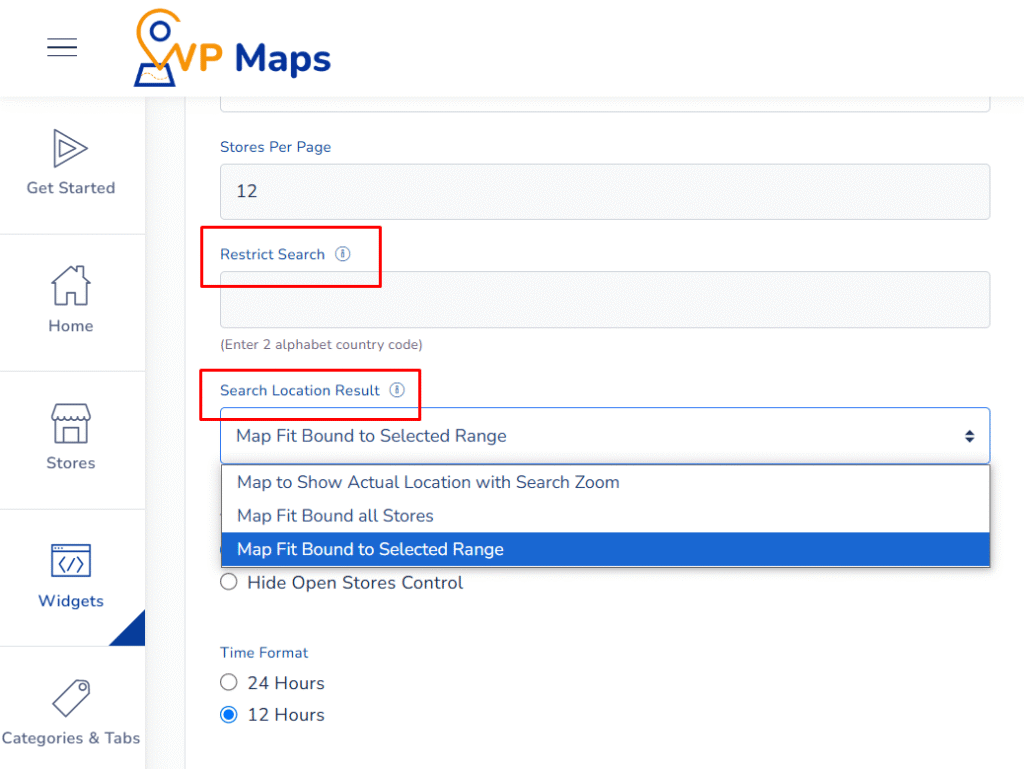
Once configured, only locations from the specified country will be considered during autocomplete or geocoder searches.
Benefits of These Settings #
- Improved Relevance – Ensures that only meaningful and local store results are shown to users.
- Geographic Control – Perfect for businesses with country-specific operations or franchise models.
- Better Targeting – Shows the right stores to the right users at the right location.
- Performance Optimization – Reduces unnecessary API calls or irrelevant suggestions from outside the target region.
How to Configure #
- Log in to your WP Maps account and click on the “Widgets” tab.
- Click on “ Install Widget”.

- Under the “UI Settings” section, locate the options in question:

- For Search Location Result, select from:
- Show Actual Location with Search Zoom
- Fit Bound All Stores
- Fit Bound to Selected Range
- Show Actual Location with Search Zoom
- For “Restrict Search”, enter your two-letter country code(s).
- For Search Location Result, select from:
- Save your settings and reload the widget to apply changes.


For any questions or concerns, feel free to contact us at [email protected].


