

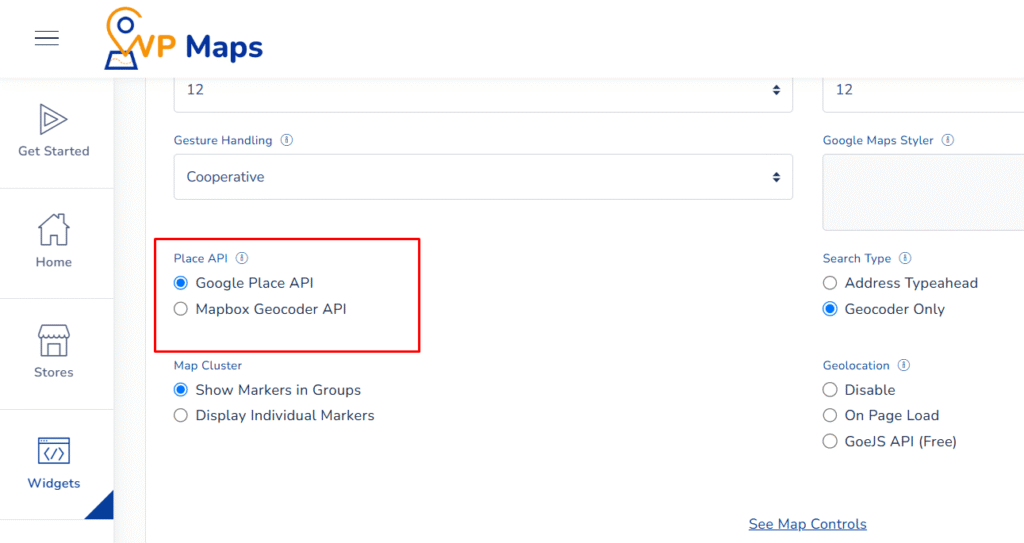
WP Maps allows you to configure the Place API to power the location suggestions and address completion in your search bar.
This setting determines how users find places, whether by using Google’s rich address database or Mapbox’s fast and customizable geocoding service.
By selecting the right Place API, you can balance accuracy, speed, cost-efficiency, and platform preferences, depending on your business needs.
What These Options Do #
The Place API setting includes two integration options:
1. Google Place API #
This option uses Google’s powerful Places API, known for its comprehensive global location data and accuracy.
To use this, you must provide a valid Google Maps API Key with Places API enabled in your Google Cloud Console.
- Excellent autocomplete and prediction
- Ideal for global coverage
- Usage is subject to Google’s pricing and quota
2. Mapbox Geocoder API #
Mapbox’s geocoding service provides fast and flexible address lookups.
To activate this, you’ll need to enter a Mapbox Access Token in your WP Maps settings.
- High-performance address lookup
- Cost-effective alternative to Google
- Highly customizable via Mapbox’s platform
Both options power search bar suggestions, address predictions, and place selection in the WP Maps widget.
Benefits of Using the Place API #
- Smarter Search Input – Instantly predicts locations as users type.
- Global Coverage – Both APIs support international searches.
- Platform Flexibility – Choose the API that fits your budget and needs.
- Accurate Results – Users find the right place faster.
- Developer Friendly – Both APIs are industry-standard and well-documented.
How to Configure #
- Log in to your WP Maps account and click on the “Widgets” tab.
- Click on “ Install Widget”.

- Under the “Map Configuration” section, locate the Place API dropdown.
- Select either:
- Google Place API (enter your Google API Key)
- Mapbox Geocoder API (enter your Mapbox Access Token)
- Save your settings.

Make sure that the respective APIs are enabled in your developer account and your keys/tokens are active.
For any questions or concerns, feel free to contact us at [email protected].


