

Seamless Navigation for Your Store Locator Widget #
Helping customers reach your physical store is as important as helping them discover it.
WP Maps enhances the store locator experience by allowing you to provide instant, accurate driving directions, powered by your preferred mapping provider.
With support for Google Maps, Mapbox, and ArcGIS, WP Maps ensures your visitors get the best possible route guidance with just one click.
What These Options Do #
Directions API #
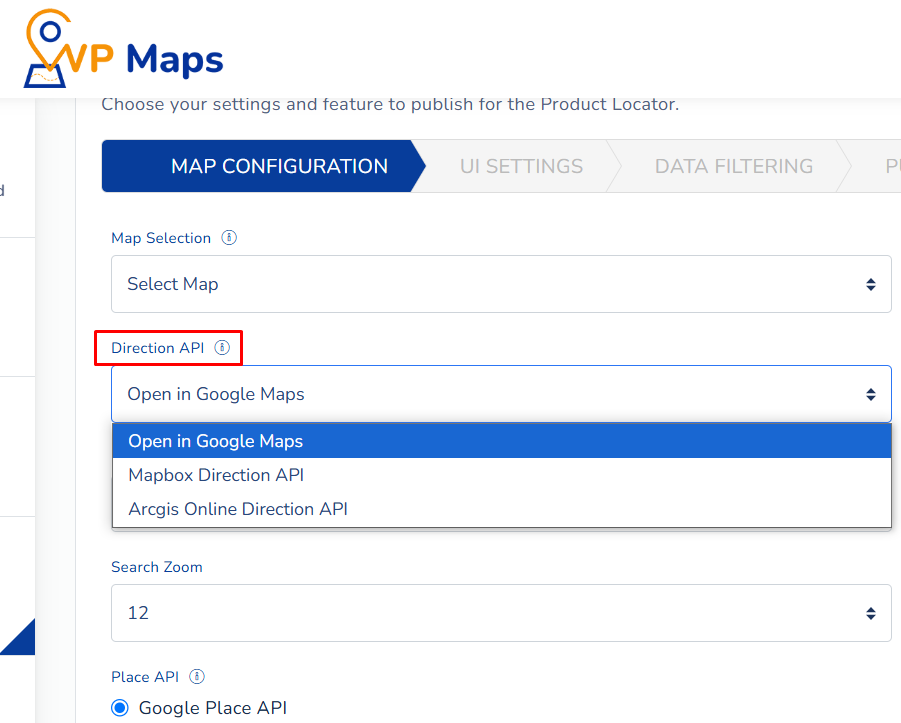
This option allows you to select how directions are handled within the store locator widget. Based on your selected map provider, the plugin dynamically adjusts the available routing options:
- Open in Google Maps: This method opens the destination directly in the Google Maps application or a new browser tab. It bypasses the need to use a dedicated API, making it a lightweight and universal solution. Perfect for mobile users who want a quick redirection to their phone’s native Google Maps app. Furthermore, if you want directions to be rendered directly in your widget, enabling the Google Directions API (https://developers.google.com/maps/documentation/directions/overview) will embed the navigation experience into your store locator.
- Mapbox Directions API: If you’re using Mapbox as your map provider, WP Maps integrates the Mapbox GL Directions API (https://docs.mapbox.com/api/navigation/directions/) to render live directions inside the widget, offering a fast and modern alternative to Google Maps.
- ArcGIS Directions API: Organizations already using Esri’s ArcGIS tools can opt to route directions using the ArcGIS API for a seamless GIS-integrated experience.
Public Google API Key #
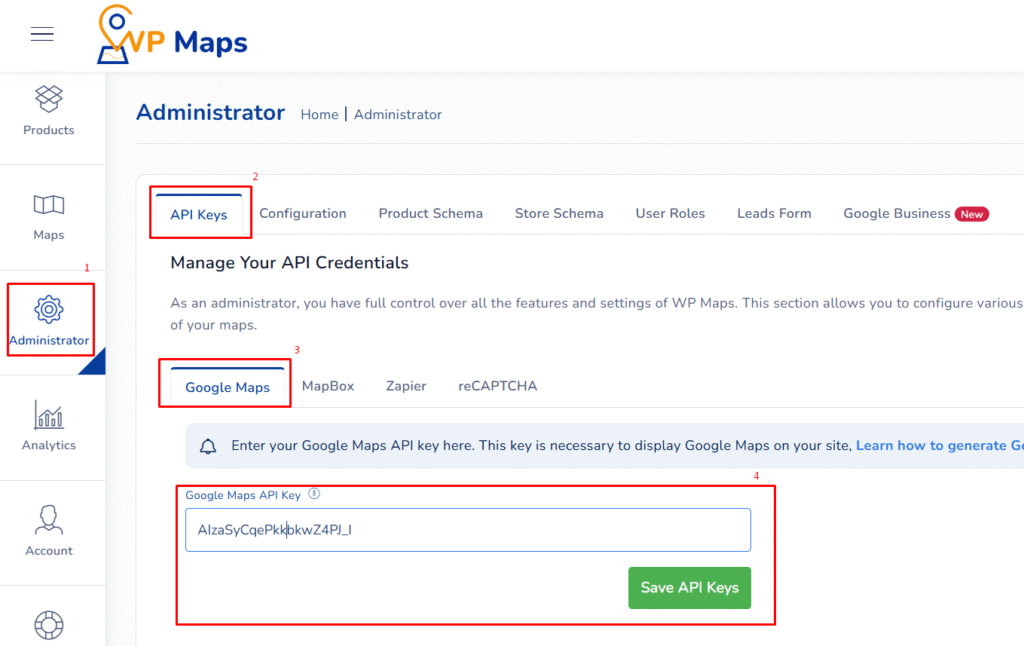
This key is required for Google Maps functionality within WP Maps. It activates map rendering, geolocation, and autocomplete functionality.
Make sure to enable the Maps JavaScript API, Geocoding API, and Places API from the Google Cloud Console to get full benefit from the plugin.

Note: There is an option to set the Google Maps API in the “Administrator” tab, but through the “Public Google API Key” field, it can be overridden for a particular widget build.
Use Cases and Benefits #
- Tailor the direction experience to match your site’s primary mapping platform (Google Maps or Mapbox).
- Choose whether to open directions in Google Maps (app/tab) or embed them into the widget.
- Simplify the navigation process and reduce user friction during their buying journey.
- Provide accurate, real-time routes using enterprise-grade APIs.
- Enhance user satisfaction and increase physical store visits through seamless guidance.
How to Enable #
To configure your direction provider and set up the Google API key:
- Log in to your WP Maps account and click on the “Widgets” tab.
- Click on “ Install Widget”.

- Under the “Map Configuration” section, select the Direction API and enter the Public Google API Key
- Save your changes.

WP Maps intelligently adapts its settings based on your selected platform, ensuring your customers always receive clear, accurate directions.
For any questions or concerns, feel free to contact us at [email protected].


