


Adding your business to online maps has become an essential step for any company that wants to be discovered by local customers. When you add a business location to Google Maps, you help people find your store, get directions, and view important information about your services.
This article explains how the process works and why it matters, and it also introduces a better way to help customers choose the right store on your website.
Many owners begin by wanting to add a business to Apple Maps, add a business to Google Search, or set up a listing inside the official Google Business Profile platform. All of these tools increase visibility, but they do not always help visitors move smoothly from discovery to action.
The introduction of a store locator for websites like those offered by WP Maps can fill this gap.
A store locator helps visitors explore all your locations in one place, learn about each branch, and connect with your brand.
This introduction prepares you for the next section, which explains why a store locator is important before you complete your map location on Google listings and begin adding locations to Google Maps.
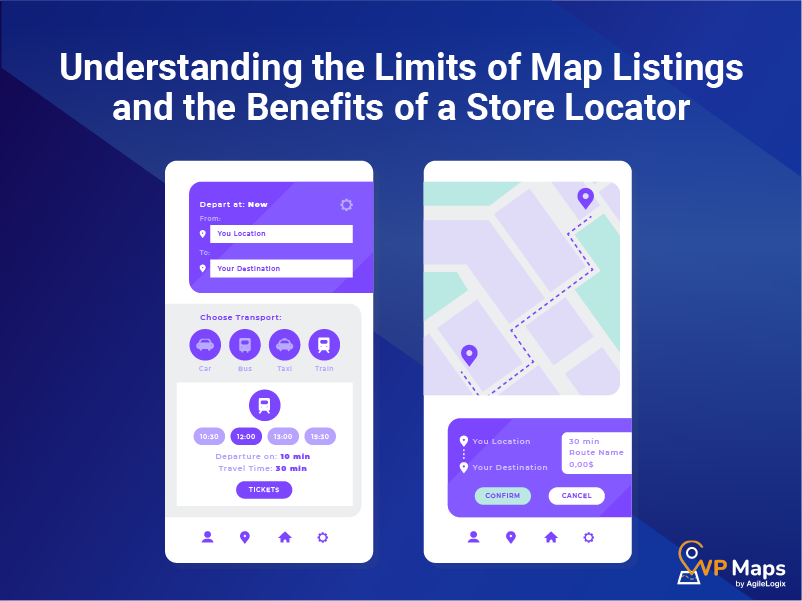
This section explains why having a store locator on your website is important before you add a business location to Google Maps.
While map listings help customers discover you, they do not give visitors the full experience they expect once they reach your website.
These limitations make it useful to understand how a locator supports both Google and Apple Maps visibility.
A Google Maps listing is helpful for visibility, but it has several limits. Firstly, you cannot change the layout or present your locations in a way that matches your brand.
The platform does not offer filtering tools, and it does not show product availability.
You also cannot display all your branches together in a single view, and users cannot search by zip code, categories, or inventory.
Most importantly, the map listing does not integrate with your website flow, so customers must switch platforms to compare your locations.
These challenges affect anyone who wants to move from a simple listing to a more complete experience after they add a business to Google Maps.
In this case, what you need to overcome the above limitations is a dedicated store locator on your website.
A store locator also provides features that standalone map listings cannot offer. This includes custom search options, filters, and details that guide customers more clearly than a plain pin on a map.
You can read this detailed article about 11 store locator software features for businesses to understand how these tools improve the user experience. These features help visitors find the exact information they need faster and reduce the time it takes to choose a nearby store. This also lowers the chances of losing visitors who may otherwise leave due to confusion or frustration.
Another important reason to add a store locator first is the way it works with Google Business Profile.
When you synchronize your Google data with a locator, the information stays consistent across all platforms.
You can follow this step-by-step guide on how to synchronize Google Business Profile with your store locator to keep your online listings aligned with the details on your website. This reduces errors and builds stronger trust with your visitors.
WP Maps, a website-based store locator, works alongside your Google listing and fills the gaps that map platforms cannot cover.
The key idea is simple.
Google Maps gives you visibility, while WP Maps gives your visitors a smoother and more complete experience once they land on your website.
This approach helps customers move from discovering your location to taking meaningful action on your website.
A store locator offers advanced features that go beyond what you can show when you add a business location to Google Maps.
These features give customers more clarity and help them choose the right store without confusion.
These capabilities give visitors more information, reduce friction, and create a stronger connection to your brand.
A locator becomes especially important for certain types of businesses.
Retail chains need a clear way for customers to compare branches.
Multi-store companies want to present their locations in a single view.
Service providers, dealerships, distributors, and online stores offering local pickup need to show detailed information that map listings do not support.
These examples show how a locator improves clarity and reduces the frustration that comes from limited map listings.
Using both tools together creates the strongest result.
Adding your business to Google Maps gives you external discovery, while using a locator on your website provides on-site navigation and conversion. This combination increases trust and improves engagement.
With this understanding, the next section explains what it means to add your business information to Google Maps and how the process works from the beginning.
This section explains what happens when you add a business location to Google Maps and why the process is more than simply placing a pin on a map.
Understanding this helps you see how map listings work and why accurate information is important before you move into the practical setup steps.
When you create or update your Google Business Profile, your company becomes visible across Google Search and Maps at the same time. This means customers can discover your address, phone number, website link, and operating hours.
Many business owners who first add a business to Google search do not realize that these two platforms work together.
Once your profile is active, your location appears in the map results whenever customers look for services in your area. This process is explained in detail in the official Maps Help Center documentation, which confirms how search and map visibility work together.
A map listing also allows customers to interact with your business by reading reviews,
A map listing also allows customers to interact with your business by reading reviews, checking popular times, and saving your location for future visits.
This makes your profile an important part of your online identity.
Some owners compare this experience with Apple Maps, and this detailed Google Maps vs Apple Maps comparison explains how both platforms differ in features and user experience.
The goal is the same in both cases, which is to help users find your location quickly and confidently.
The details you add to your map listing form the foundation for the steps that follow.
The next section builds on this by showing how to add a business location to Google Maps using a clear method that any business can follow.
This section guides you through the exact method you can use when you want to add a business location to Google Maps.
It continues from the previous section by turning the concepts into practical steps that any business owner can follow. These steps help you create a complete and accurate listing so customers can find the right information on Google Search and Maps.
The first step is signing in to your Google Business Profile account. You can reach this by visiting the official platform.
Once you are signed in, you can start the process of adding your location. This is helpful for anyone who wants to appear when people add a business to Google search or look for places nearby.
At this stage, it is also important to review your website details. If you use a store locator such as the Agile Store Locator plugin, make sure your address matches your online information.
The second step is performing a search for your business name inside your Business Profile dashboard. The company checks whether your company already exists in the system. If it does, you can claim the listing. If it does not, you can create a new one.
When you reach this point, your goal is to add a business location to Google Maps with complete accuracy. Google’s verification guidelines help you understand what is required and how the verification process works.
The third step is entering your business details. This includes your name, category, website, phone number, and service area.
You should also add your physical location during this step. The system will show a map, and you can drag the pin to the exact location. This step helps the search engine show the correct information when customers search for your company. If your website uses search tools such as a zip code-based store locator, make sure your location details stay consistent across all your online platforms.
The fourth step is selecting your business category.
You can choose from a list of categories that match your services.
Picking the correct category helps customers find you faster. It also helps users who want to add a business to Apple Maps because a similar category system exists there. This improves the visibility of your business across multiple platforms.
The fifth step is adding your opening hours, photos, and other key information.
These extra details make your listing more attractive to users.
Many businesses also set up their website maps with the Maps API so they can show the same information on their own websites. You can learn more about this in this Google Maps API key setup guide.
Having the same information in both places reinforces customer trust.
The sixth step is verifying your business.
Google usually sends a postcard with a code to your address, but in some cases, you can verify by email or phone.
Verification completes the process and allows your business to appear on the map.
When you add a business location to Maps, and it becomes verified, customers can view your listing in both search and maps. This also prepares you to move forward with Apple Maps or other map services.
These steps give you a complete overview of how to add your location and ensure it is recognized by the search engine.
The next section expands on this by explaining how to add a business to Google search and how your listing appears across different areas of Google.
Once you add a business location to Google Maps, you can continue to manage your business through your business account. This includes updating your Business listing, improving your profile for your business, and ensuring your location stays accurate.
Businesses that list your business correctly and keep details updated are more likely to attract potential customers and benefit from higher visibility in Google search results.
This section builds on the previous steps by explaining how your information appears in Google Search once you add a business location to Google Maps.
Many owners assume that Google Search is a separate process, but in reality, your Business Profile controls both your map visibility and your search visibility at the same time. Understanding this helps you manage your online presence more effectively and gives you a clear picture of how your information spreads across the tech giant’s network.
When you complete your profile, Google automatically shows your business in the search results. This happens even if your initial goal was only to add a business to Google search. By filling in your details during the map setup, you create a unified presence across all of the tech company’s platforms.
Your listing may appear on the right side of search results as a business panel or inside the local results that appear for nearby searches. These placements depend on relevance, distance, and the quality of your profile.
A well-optimized profile can help your business appear for more searches.
Adding photos, correcting your hours, and completing your business description can increase your chances of being seen. If you want to improve this further, you can review guidance on how to optimize for location-based queries in this near me search optimization guide.
The above information helps you understand how Google identifies which companies are most relevant for local customers.
Your search visibility improves as your reviews increase and your business activity grows. This is why keeping your profile information updated is important after you add a business to Google Search or Maps. These updates give the search engine more confidence in your listing, and customers feel more secure when the information they see is current.
This section prepares you for the next part of the guide, which explains how to add a business to Apple Maps and why both platforms support your online presence in different ways.
This section explains how to add a business to Apple Maps and why doing so supports the work you have already completed when you add a business location to Google Maps.
Each platform reaches different users, and Apple Maps plays an important role for people who use iPhones and other Apple devices.
Understanding the process helps you create a complete online presence across multiple map services.
To begin, you can create or claim your business inside Apple Business Connect. This platform allows you to build a profile that appears in Apple Maps and other Apple services.
When you add a business to Apple Maps, you enter your location, hours, website, and contact details in a similar way to a Business Profile. This makes your information easy for users to find when they search through Siri, Apple Maps, or the search box on their Apple devices.
The next step is checking whether your business already exists in the system.
Apple often preloads certain locations, so you may find your business already listed. If it exists, you can claim it. If it does not, you can add it as a new location.
Adding photos and selecting the correct category helps users understand what you offer. As with Google Search, accurate and complete information increases your visibility.
After that, you can verify your business. Apple may request documentation or confirmation to ensure your information is correct.
This protects the quality of the listings and helps users trust the locations they find. Some owners compare Apple Maps with Google Maps to understand which platform suits them better. This Google Maps vs Waze comparison shows how different map services handle navigation and user experience.
When you add a business to Apple Maps, you expand the ways customers can find your location. The next section brings this together by explaining why both map listings work best when you also use a store locator on your website.
For more information on the difference betwen Google Maps and Apple Maps, you can view this article: Google Maps vs. Apple Maps: Which Navigation App is Better for iPhone Users in 2025?
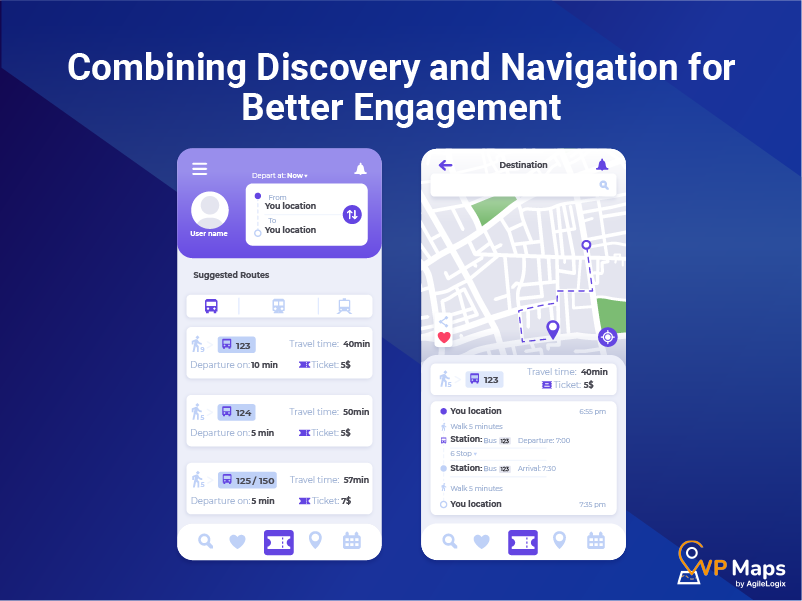
This section explains why using both map listings and a store locator creates a stronger online presence than relying on map listings alone.
The previous sections showed how to add a business to Apple Maps and how your details appear in Google Search when you add a business location to Google Maps. Now it is important to understand how a store locator on your website supports these map listings and helps customers make better decisions.
When customers find your business on Google Search or Apple Maps, they often visit your website next. At this stage, they are looking for clear information about each location.
A store locator such as the one offered by WP Maps gives you full control over how customers explore your branches. Your map listings help people discover you, while your store locator helps them choose the right store. This creates a smooth experience from search to action.
A website-based locator also allows you to present more details than a map listing. You can display services, product availability, and special features that help customers compare your locations. This is harder to achieve when you only add a business location to Google Maps or add a business to Apple Maps because these platforms limit how much information you can show. A store locator lets you show everything in one place, which improves customer convenience.
You can learn more about the benefits of these tools by reviewing this detailed store locator feature guide. A locator improves user engagement and reduces confusion, especially for companies with many locations. This combination of map listings and website navigation helps customers find you, understand you, and take action in a way that is simple and reliable.
This section leads into the next part of the guide, where you will find answers to common questions about map listings and store locators.
This conclusion brings together everything discussed in the earlier sections and shows why combining map listings with a store locator creates the strongest online presence for any business.
Throughout this guide, you learned that when you add a business location to Google Maps, customers can find your address, read your reviews, and locate your store with ease.
You also discovered how Google automatically shows your information in search results and how useful it is to add a business to Apple Maps so you reach customers who rely on Apple devices. These map listings help people discover your company, but they are only the first step in guiding visitors toward the right location.
A store locator adds the final layer of clarity your customers need. When visitors reach your website, they often want to compare branches, check services or confirm availability.
A locator such as the one offered by WP Maps brings all your information together in a simple format. It uses your map listings as the foundation while giving you the control to present more details in one place. This makes it easier for customers to make a decision and supports the work you did earlier when you chose to add a business location to Google Maps.
Businesses that want even more flexibility can explore additional store locator tools and resources through Agile Store Locator.
This completes the guide and prepares you to use both map listings and a store locator to build a complete and effective online presence that helps customers find and choose your business with confidence.
To add a business location to Google Maps, you need an official account and access to your business profile on Google.
Once you sign in with your account, you can create one business profile or manage an existing business listing.
Adding your business address correctly helps potential customers in your local area find you when people search for nearby services. This is one of the easiest ways to get your business on the search engine and make sure customers can find your business online.
Yes, it is free to add a business location to Google Maps using a free business profile. You do not need to run Google Ads to list your business.
By creating a Google Business Profile, you can add information about your business, manage your business details, and build a profile for your business without any cost. A free listing on Google helps drive traffic to your business and makes your business visible to people in search results.
When you add a business location to Google Maps, you must provide accurate information about your business. This includes your business address, contact details, and category. Google uses this information to create a listing on Google and display your business in Google Maps.
A complete Google Business Listing helps customers understand your services and increases the chance that potential customers will visit your location.
After you add a business location to Google Maps, Google sends a verification code to confirm your business account. This step proves that your business address is real and allows you to fully manage your business listing.
Once verified, your business in Google Maps becomes active, and customers can find your business with confidence. Verification also protects your listing on Google from incorrect changes.
Yes, when you add a business location to Google Maps, it becomes easier for potential customers to discover you.
A verified business in Google Maps improves visibility, increases trust, and helps drive traffic to your business. When people search for services nearby, your listing on Google can appear, making it easier to get your business noticed and helping customers find your business faster.

Talha has 3 years of experience in writing blogs and guide articles about topics that cover e-commerce practices, WordPress plugins, and SaaS apps. His blogs are SEO-oriented and have ranked high on SERPs. His main goal is to convey complicated topics in an easy-to-understand format for his readers. Usually, this involves thoroughly researching a topic beforehand before translating it into a comprehensible article. Talha has completed his bachelor’s from the American University of Sharjah where his passion for writing and communication was sparked by learning to write about a wide range of topics such as social issues, history, and scientific methodology. His main area of expertise was writing technical papers that were easy to digest by a general audience.


In retail, foot traffic—or the number of people visiting a physical store—is a crucial metric for...

In today's digital age, local SEO is a cornerstone of successful marketing for any business, including...